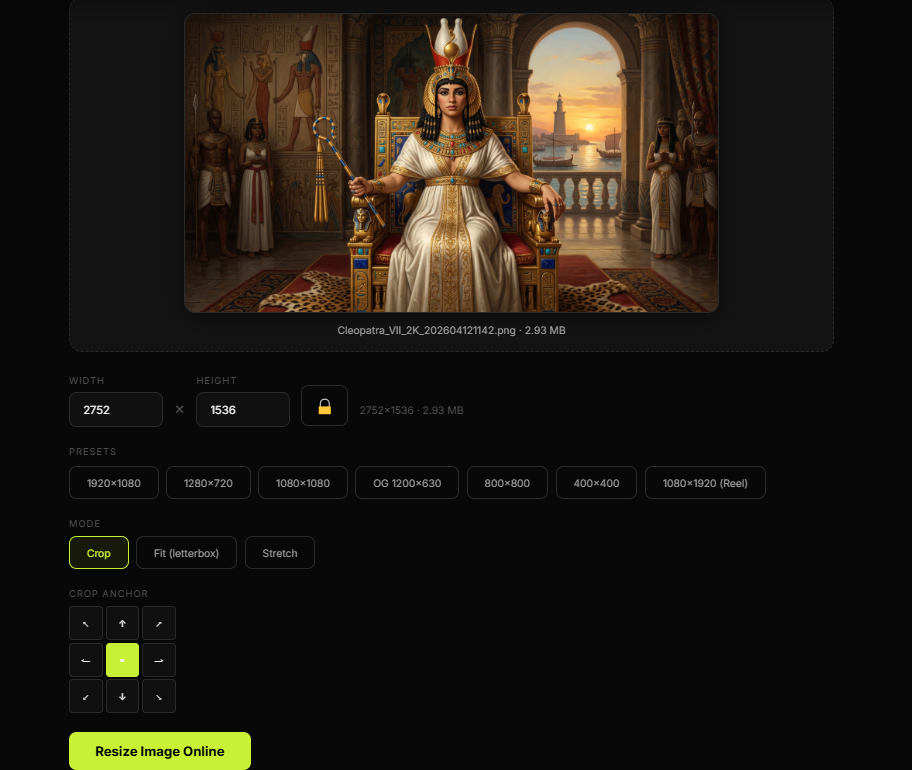
Thumbnail design gets discussed like an art form, a mystery, and a psychological experiment all at once. Fair enough. But before any of that matters, the image has to fit the format correctly. If the size is wrong, the thumbnail can become blurry, stretched, awkwardly cropped, or just visually weak in ways that have nothing to do with your idea. That is why knowing how to resize images for YouTube thumbnails is not a minor technical detail. It is part of making the thumbnail usable in the first place.
Plenty of creators focus on text, contrast, facial expression, arrows, circles, color, and the usual thumbnail theatre. Meanwhile the base image may be the wrong size, the wrong ratio, or too small to hold up properly in the final design. That is how people end up fighting the layout when the real problem started much earlier. A thumbnail cannot look sharp and professional if the source image is already working against you.
Why image size matters for YouTube thumbnails
YouTube thumbnails are shown in different sizes across home feeds, search results, suggested videos, channel pages, and various device screens. The design needs to remain readable and visually stable in all of those places. If the image is not resized properly, the final result can look soft, distorted, or poorly framed. None of that helps the click.
Correct resizing gives you control over composition. It allows you to work with the image inside the right canvas instead of trying to force the canvas to tolerate the wrong image. That difference matters. One approach is design. The other is damage control with extra steps.
The standard YouTube thumbnail dimensions
The commonly recommended YouTube thumbnail size is 1280 by 720 pixels with a 16:9 aspect ratio. This is the format most creators build around because it matches the platform well and gives enough room for faces, objects, text, and graphic elements without forcing everything into a cramped little argument.
Using the correct ratio matters as much as using the correct dimensions. If the source image does not match the expected shape, resizing it without care can stretch the image unnaturally or crop away important visual information. That is where many thumbnail problems begin. The design itself may be fine. The image handling was not.
Resize versus crop: know the difference
Resizing and cropping solve different problems. Resizing changes the dimensions of the image. Cropping changes the visible area. For YouTube thumbnails, you often need both. Sometimes the image is simply too large and needs resizing down to fit the working canvas. Other times the image has the wrong composition and needs cropping so the main subject fills the frame more effectively.
The smartest workflow usually starts with the question: what does the thumbnail need to show clearly at a glance? Once you know that, resizing becomes easier because it is tied to a visual purpose, not just to numbers. A face may need to be larger. A product may need more space. A background may need to disappear. The thumbnail should not feel like the image was technically inserted and emotionally abandoned.
Why stretching ruins thumbnail quality
One of the fastest ways to make a thumbnail look cheap is to stretch an image to fit. Faces become wider or narrower than they should be, objects lose natural shape, and the whole design starts looking slightly wrong even if the viewer cannot explain it. People notice distortion quickly. They may not say “this aspect ratio has been mishandled,” but they absolutely feel that something is off.
This is why preserving proportion matters. A proper image resizer should let you resize while keeping the correct ratio or give you a controlled way to crop instead of forcing distortion. The goal is not merely to make the image fit. The goal is to make it fit well.
Why thumbnails need sharp source images
Even the correct dimensions will not save a weak source image. If the original file is too small, blurry, compressed too aggressively, or pulled from a poor quality screenshot, resizing it up for a YouTube thumbnail will not magically produce detail that never existed. At best, the tool makes it bigger. At worst, it makes the lack of quality bigger too, which is not exactly a win.
That is why resizing works best when the source image already has decent clarity. A high quality starting point gives you more room to crop, scale, and position the subject without the final thumbnail looking soft or tired. In thumbnail work, strong source material does a shocking amount of emotional heavy lifting.
How resizing helps composition
Resizing is not only a technical task. It is part of visual hierarchy. A thumbnail has to guide the eye quickly. If the subject is too small in the frame, it may get lost. If the image is too wide and the important object sits far off to the side, the design may feel empty or unbalanced. Resizing and cropping help bring the important part of the image into a stronger position.
This matters a lot in YouTube packaging because thumbnails compete in crowded visual environments. A cleaner, better sized subject often performs better simply because it becomes easier to understand instantly. In most feeds, the viewer is not rewarding subtlety. The viewer is rewarding clarity.
Common reasons creators resize images for thumbnails
- To match YouTube thumbnail dimensions: usually 1280 by 720 in a 16:9 ratio.
- To improve framing: making faces, objects, and visual cues larger and clearer.
- To avoid distortion: keeping the image proportional instead of stretched.
- To prepare assets for design: fitting photos, cutouts, screenshots, and graphics into a cleaner thumbnail layout.
- To support A/B testing: creating more polished thumbnail variations with better composition.
Why an online image resizer is useful
An online image resizer is helpful because most people do not want to open a full design program just to correct dimensions. They want a quick way to resize the image, check the result, and move into thumbnail design without turning a routine task into a software commitment ceremony.
This becomes even more useful when resizing is part of a broader workflow. Many creators convert images, remove backgrounds, compress files, compare thumbnail versions, and prepare assets one after another. A browser based resizer fits naturally into that process and helps shorten the path between raw material and finished thumbnail.
Best practices for resizing thumbnail images
Start with the highest quality source you reasonably have. Keep the 16:9 ratio in mind. Resize with proportion preserved. Crop when needed to strengthen the focal point rather than stretching the image to fill space. Check the result at realistic viewing size, not just zoomed in while making tiny dramatic judgments from three inches away.
Also remember that YouTube thumbnails are usually seen small. What looks balanced on a large editing canvas may look weak in the feed. Resizing is part of making sure the important visual elements survive contact with reality.
How this helps SEO and click performance
Technically, resizing an image does not directly change rankings the way metadata or page structure might. But for YouTube thumbnails and visual assets, better sizing supports stronger presentation. Stronger presentation supports better clicks. Better clicks and clearer visuals support better user response. So yes, resizing sits earlier in the chain, but it still matters.
From a search perspective, this topic also has strong intent because users are actively looking for a tool or answer they can apply immediately. That makes it valuable both as helpful content and as a support article for an actual image resizing tool.
Final thoughts
If you want better YouTube thumbnails, resizing images properly is one of the simplest foundational improvements you can make. It helps the thumbnail look cleaner, sharper, more balanced, and more professional before you even start arguing with text placement and color accents.
In other words, good thumbnail design starts before the flashy part. It starts with the right image, in the right ratio, at the right size, prepared in a way that helps the design instead of quietly sabotaging it. Not glamorous, perhaps. Very useful, absolutely.